The panel and its seven tabs
The desk lives inside the MetaTrader chart, with no separate windows. At the top there's a strip of tabs, and each one holds one or more modules.
You switch tabs with keys 1 to 7, without touching the mouse.
Why it's laid out this way
Not by topic, but by when each thing gets looked at. It's the difference between a panel you actually use and one that makes you go back and forth:
- What's happening out there gets checked before deciding → MARKETS
- What you're planning gets checked while deciding → PLAN
- What's on right now gets checked constantly and in a hurry → TRADES
- What you've built up gets checked now and then → RISK and DASHBOARD
MARKETS — what's happening out there
Five things that answer the same question at different resolutions:
| Module | What it tells you |
|---|---|
| Quotes | The prices of your symbols |
| Session | Which session is open and how much of it is left |
| Map | Where something's happening, across eight symbols at once |
| News | What data is coming, and when, from MetaTrader's calendar |
| Cascade | The structure of the symbol you're looking at |
They sit together because they're read as one block: what time it is, at what price, and what data is coming. It's what you check before deciding, and splitting it up would force you to switch tabs mid-decision.
PLAN — what you're preparing
| Module | What it does |
|---|---|
| Desk | Create, delete and reverse the plan; arm and send |
| Plan | The plan's figures: entry, stop, target, lots, R:R |
| Drawing | The drawing tools on the chart: LEVEL, LINE, ZONE, FIBO, MEASURE and NOTE |
| Analysis | What the levels you've drawn are saying. How to read it: The analyser |
Analysis lives here and not on another tab because it answers on the levels you can see. Anywhere else would mean going back and forth to compare the figure with the geometry that produced it.
And from the chart you can also drag the stop of a live position — with the same hand that moves a plan's line. The usual asymmetry applies here too: tightening it (reducing what can be lost) is free; widening it needs the same permission as adding risk anywhere else in the product.
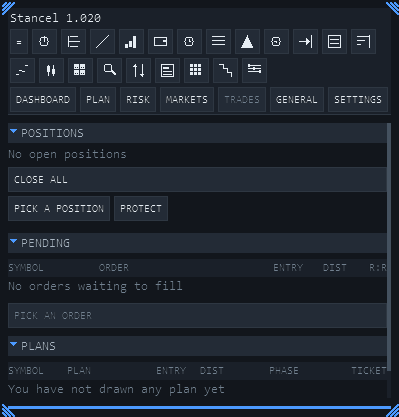
TRADES — the money, right now
The three states of a trade, together:
| Module | What it holds |
|---|---|
| Positions | What's open |
| Pending | What's waiting at the broker |
| Plans | What's only drawn |
They're on the same tab because they're the same money at three moments. Splitting them would force a tab switch right when one turns into the next.
This tab earned its place from a specific complaint: looking through the panel for a plan you'd just drawn and not finding it on any list. A plan that doesn't show up anywhere is indistinguishable from a plan that doesn't exist.
RISK — how you're doing
| Module | What it tells you |
|---|---|
| Account | Three figures — EQUITY, DD TODAY (with a bar against the day's allowance) and DOCTRINE (the risk per trade you've set) — plus a line for the guard and, when there's something to say, one for the safety stop's state |
| Open risk | What you have on the line right now |
| History | What's already closed, with streaks, winners and losers |
This is review material, not something to watch live. That's why it's not with the live tabs.
DASHBOARD — the aggregate
It has its own tab and sits there alone.
It answers the same family of question as RISK — "how am I doing" — but at a different scale: RISK shows what's happening now, row by row; the dashboard shows the whole.
This is where the guard's three spheres live (TODAY, TOTAL, TARGET), and the bar that spreads all your risk across the day's allowance. Below that, the statistics: HIT RATE, EXPECTANCY, FACTOR and STREAK; an R histogram; the same cuts by symbol, direction, session and day; a slippage table (ORDERED, ACTUAL, POINTS); and net exposure by currency — three positions against the dollar aren't three bets, they're one. Any cell under 20 trades dims: it isn't that the figure is missing, it's that 20 trades aren't enough to trust it.
It's alone on purpose: it's a page you open to look at as a whole, not a block you glance at sideways. Folded into RISK, that tab would have ended up with two position tables, two exposure tables and three screens of scrolling — and what you check before opening a trade would have ended up below the fold.
SETTINGS — everything you can configure
Nine groups: Funding, Plan, Management, General, Chart, Indicators, News, Telegram and Account type.
Every setting has its own tooltip: hover over it and it tells you what it does and what happens if you change it. It's in its own section: Settings.
GENERAL — the drawer, and today it holds four modules
Any module nobody has assigned to another tab lands here. It's not a mistake: it's deliberate. A module that doesn't show up on any tab is indistinguishable from a module that doesn't exist, so it always falls somewhere visible.
Today there are four:
| Module | What it tells you |
|---|---|
| Scanner | Which strategy is forming on each pair and timeframe, sorted by how close it is to firing. It's the watching side of what The analyser explains, not the planning one |
| Indicators | The geometry of the registered indicators: channels, volatility bands and confirmed peaks. They draw shape over price — none of them claims an edge |
| Prices | The eight pairs of your Market Watch, each with its candle type and the method's DKL on top |
| Candles | Price with your candles and the DKL drawn on top, using the type chosen in SETTINGS → Series |
Panel things worth knowing
It can be rearranged, and it's saved
Modules can be moved, hidden and popped out floating. The layout is saved and comes back the way you left it on startup.
Density and theme
In SETTINGS → Chart: the desk's theme and the density (how tightly the information is packed). If you're short on screen space, density is the first thing worth touching.
The status bar
You can put a status bar on your charts that shows the guard's essentials without having the panel open. Also in SETTINGS → Chart.
The flashes
When a figure changes, it flashes. You can turn this off in SETTINGS → Chart → "Flash when a figure changes" if you'd rather the panel stayed still.