Trading: from the plan to the order
Stancel doesn't trade on its own. Every order is sent by you, and it takes three deliberate gestures for one to go out.
This isn't bureaucracy: a panel that can trade from the first second is a panel that trades when you didn't want it to.
The whole route
NEW PLAN  →  drag the levels  →  ARM  →  CONFIRM  →  SEND
  draws       adjust by hand     permission  authorise   the order goes out
The first three send nothing to the broker. Only the last one does.
1 · Create the plan
In PLAN → Desk, press NEW PLAN (or the P key).
A plan with three levels appears on the chart: entry, stop and target. You drag them with the mouse to wherever you want them.
As you move them, the panel recalculates:
| Figure | What it is |
|---|---|
| Lot | The size that comes out of your risk and the distance to the stop |
| Risk | How much you lose if the stop is hit, in money and in percentage |
| R:R | How much you gain for every unit you risk |
| Profit | How much you gain if the target is hit |
And there are two more buttons:
- SIDE — buy or sell. Switching it moves the stop and the target to the other side, and the entry stays where you put it. It sends no order.
- DELETE (or the
Delkey) — removes the plan from the chart. It doesn't affect any position: the plan hasn't sent anything.
The R:R warning
If the R:R drops below your line, the panel tells you. It comes off (at 0) — changed in SETTINGS → Plan —: while it is at zero, it never warns.
It warns, it doesn't block. The decision is still yours.
CAUTION and NORMAL
Next to the risk figure there's a two-position switch:
- NORMAL — uses the risk-per-trade figure as it is
- CAUTION — shrinks it by a factor (0.40 out of the box: a 0.25% becomes 0.10%)
It always starts in CAUTION, and it isn't kept between sessions. This is deliberate, and it's the same logic as the arming switch: of the two mistakes possible at startup, only trading too big costs money.
Templates
Four slots for recipes you use often: the stop distance in pips and the target in multiples of R.
SAVE TEMPLATE saves the plan you have right now, and the name sets itself, derived from the recipe: p40_2R is a 40-pip stop and a 2R target. There's nothing to fill in first.
There are four fixed slots and not a list that grows, because a template exists to be applied fast — and "fast" means the button is always in the same place. A list that reorders itself when you add one forces you to read before you press, which is exactly what the template was there to avoid.
2 · Arm
The master switch. Until you flip it up, SEND does nothing.
And it drops on its own in three cases:
- If the guard says not today
- If you switch symbol
- If the connection is lost
It always starts down. There is no setting to make it start armed, and there won't be one.
To flip it down by hand: DISARM, or the Esc key.
3 · Confirm
CONFIRM (or Enter) authorises that order, with those prices and that lot.
And it expires:
- After 90 seconds
- If you move the plan
Either one invalidates the confirmation and you have to give it again. An authorisation that survives you moving the entry isn't authorising what you're about to send.
Enteris the only keyboard key that comes anywhere close to sending an order — and even then it sends nothing. There's no key to arm, to send or to close: what can't be named can't be pressed by accident.
4 · Send
SEND sends the order to the broker.
Before doing it, it asks the guard and the arming switch again. And that's not paranoia: time passes between confirming and sending, and in that time the daily limit could have been crossed.
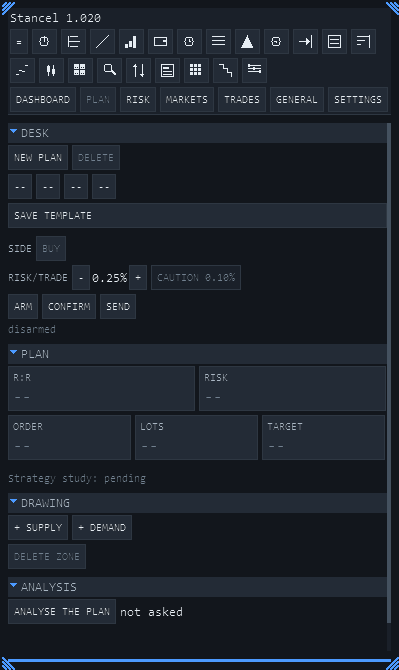
At the top, DESK — create, delete, the four templates, the side, the risk per trade with its CAUTION switch, and the three sending buttons; and below, the footer that reads disarmed, which is the first thing to check.
The real account has its own permission
Out of the box, Stancel only trades on demo accounts. If you try to trade on a real account without authorising it, the guard blocks it and says so in those words.
To authorise it: SETTINGS → Funding → "Allow trading on a REAL account".
It's a separate switch, and it's separate on purpose: the difference between a demo and an account with real money can't depend on you not having noticed which one you were in.
Closing
Closing is the opposite of opening, and that's why it's easier. It does not need the desk to be armed. The rule is simple and holds for the whole product: getting out is always possible; getting in, not always.
In TRADES → Positions: you pick a row in the table and then press the button — the button names what you're about to close, with symbol, direction and volume.
| Button | What it does |
|---|---|
| (close) | Closes only the position picked in the table |
| PROTECT | Moves the stop of the picked one to its entry price. It only REDUCES what can be lost, so it needs no second touch |
| CLOSE ALL | Closes every position belonging to this desk; another program's positions are left alone. Needs two presses |
In TRADES → Pending: CANCEL pulls the picked order from the broker, with a second confirming touch. An order that isn't Stancel's can't be cancelled from here: cancel it from the terminal instead.
In TRADES → Plans: GO TO moves the chart to the plan's pair, sending nothing; ARCHIVE removes a finished plan from the list without touching the broker; DELETE removes the drawing from storage — if that plan already reached the broker, the order is still live and has to be cancelled separately.
What Stancel checks before sending
| Check | What happens if it fails |
|---|---|
| Does the guard allow trading today? | The order doesn't go out |
| Is it armed? | The order doesn't go out |
| Is there a live confirmation? | The order doesn't go out |
| Does the lot fit the margin? | The order doesn't go out, and it says so |
| Could the plan be saved? | The order doesn't go out |
The last one is the least obvious: if the settings store is full, the plan can't be saved — and with no saved plan there's nothing to check what went out against. It would rather not send than send something that can't later be audited.